
Sync and your devices
How Jetlog keeps your iPhone and iPad in step, what happens offline, and how to remove a device or sign out everywhere.
On this page
Your logbook lives in your account, and every iPhone or iPad you sign in on shows the same flights. A change on one device reaches the others within moments. Everything is stored on the device first, so you can log flights without a connection.
How sync behaves #
- Live updates. With a connection, the sync card at the top of Settings reads Connected and "Live updates are active."
- Offline. The Logbook title shows "Offline". Your edits are kept on the device and sent when the connection returns. Nothing is lost by logging offline.
- Two devices, one flight. Conflicts are settled per field. If you change the same field of the same flight on two devices, the newer edit wins. A change that is still waiting to be sent is never overwritten by incoming data.
- A rejected change. Jetlog retries a few times, then returns that flight to the account's copy. A new flight that is rejected for good stays on this device only. Its row shows "Sync blocked", and its detail says "Not synced to your account" with Edit and Delete. Edit it to fix the problem and it syncs by itself.
To see what is happening, tap the sync card in Settings to open Sync. It lists the current problem and the history. The Options menu has Copy All and Share All, which is useful when you write to support. See Sign-in and sync problems.
Use iPhone and iPad together #
Sign in on each device with the same account. Both appear in your device list and stay in step. An Apple Watch is not listed as a device, because it gets its data from your iPhone. See Jetlog on Apple Watch.
See and rename your devices #
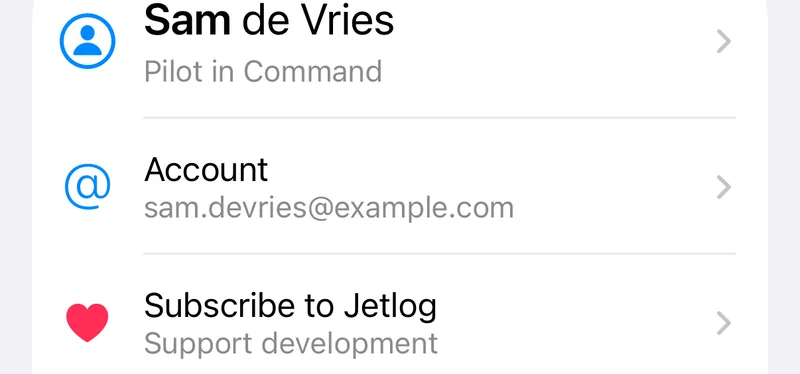
- Open Settings and tap Account.

- Find Devices. Each row shows the device name, the model, the iOS and Jetlog version, and "This device" or "Last seen".
- Tap a device to rename it. Leave the name empty to use the device model.
Remove a device #
- In Settings > Account > Devices, swipe left on the device.
- Tap Remove and confirm.
You cannot remove the device you are holding. A removed device is signed out and its local data is erased the next time it connects. Changes on it that have not synced yet are lost. The device can sign in again later, and then downloads your logbook again.
Sign Out Everywhere #
At the bottom of the device list, Sign Out Everywhere removes all your other devices and disconnects every connected app and terminal, including AI assistants and the command line tool. The other devices are signed out and erase their local data the next time they connect. This device normally stays signed in. The alert tells you before you confirm whether this device stays signed in or not.
Use it when a phone is lost or you suspect someone else has access.
What an outdated or removed device sees #
- Update Required. When your Jetlog version is too old, you see "A new version of Jetlog is required." Tap Update Now to go to the App Store. Until you update, the app cannot sync.
- Device Removed. A removed device shows the sign-in screen with "This device was removed from your account. Sign in again to keep using Jetlog here."
- Sign in again. If your session expires, the Logbook title turns orange. Tap it and sign in again. Your logbook stays on the device.
Signing out of one device is under Settings > Account > Sign Out. The alert warns that unsynced items will be lost.
Still stuck? Write to support and a pilot answers.