
Settings, row by row
Every row in Jetlog's Settings, in the order the app shows them, with what it does and where to read more.
On this page
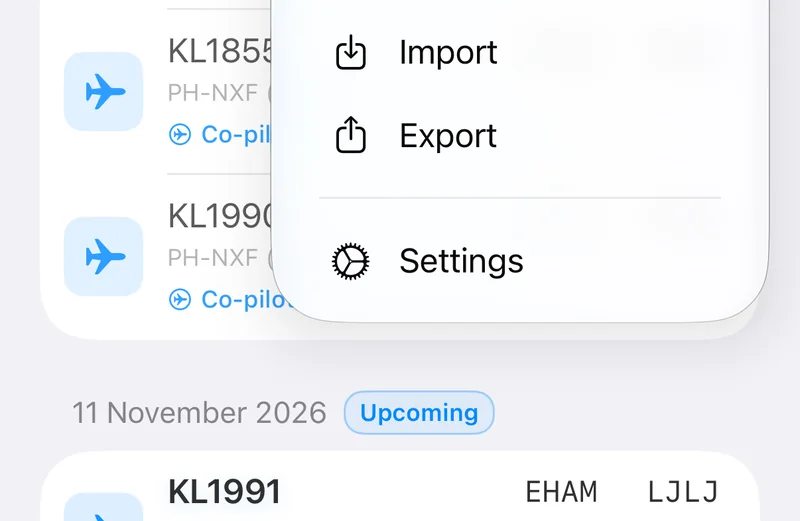
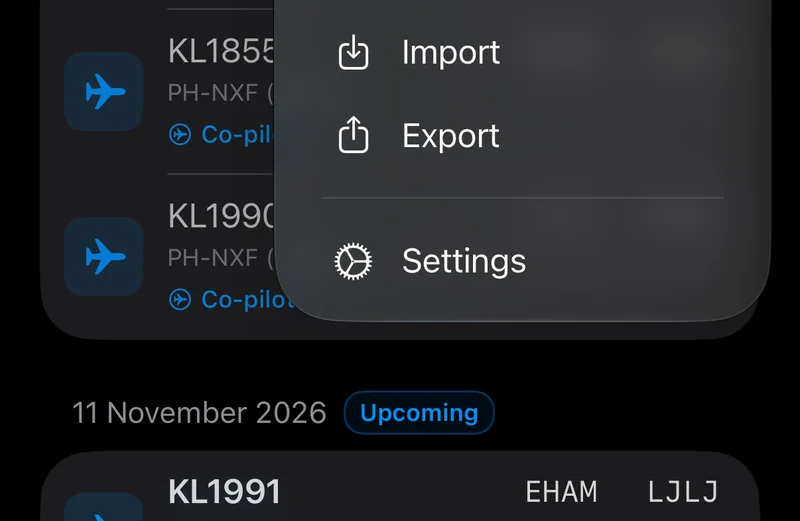
Open Settings from the Logbook: tap ⋯ and choose Settings. The Search Settings field at the top finds a row by name.
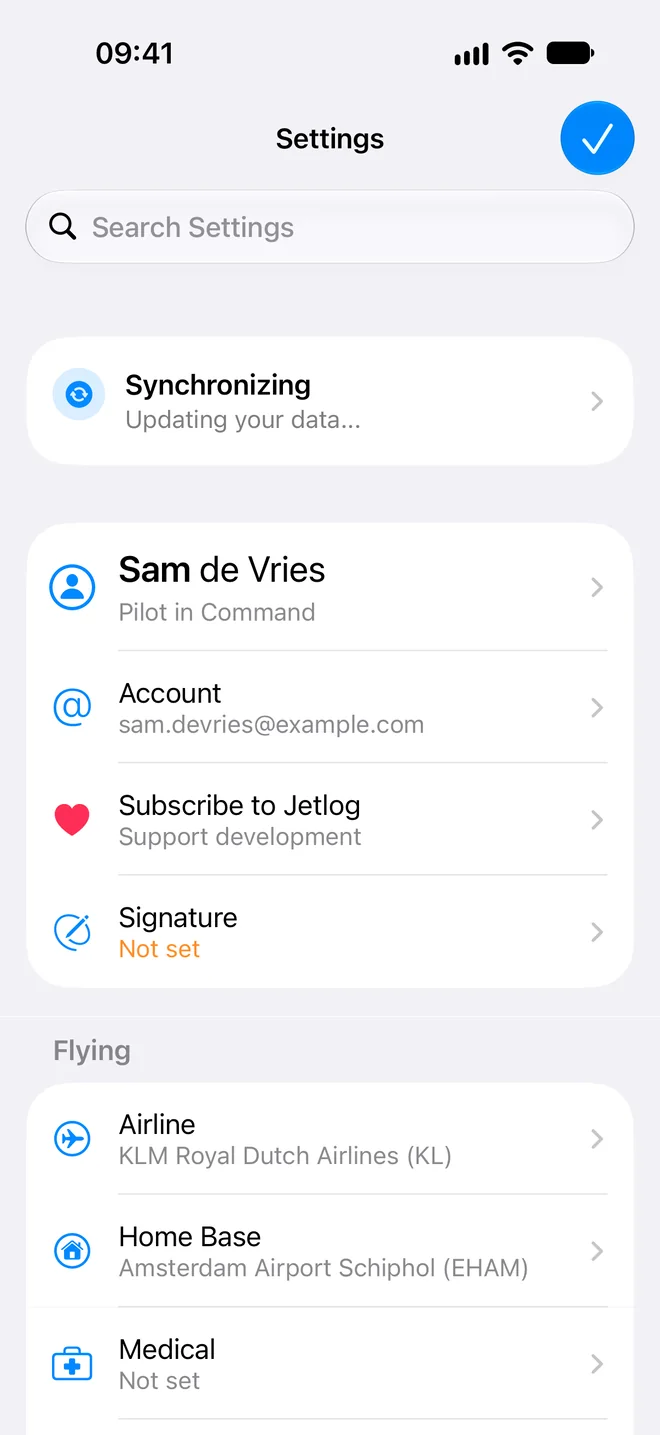
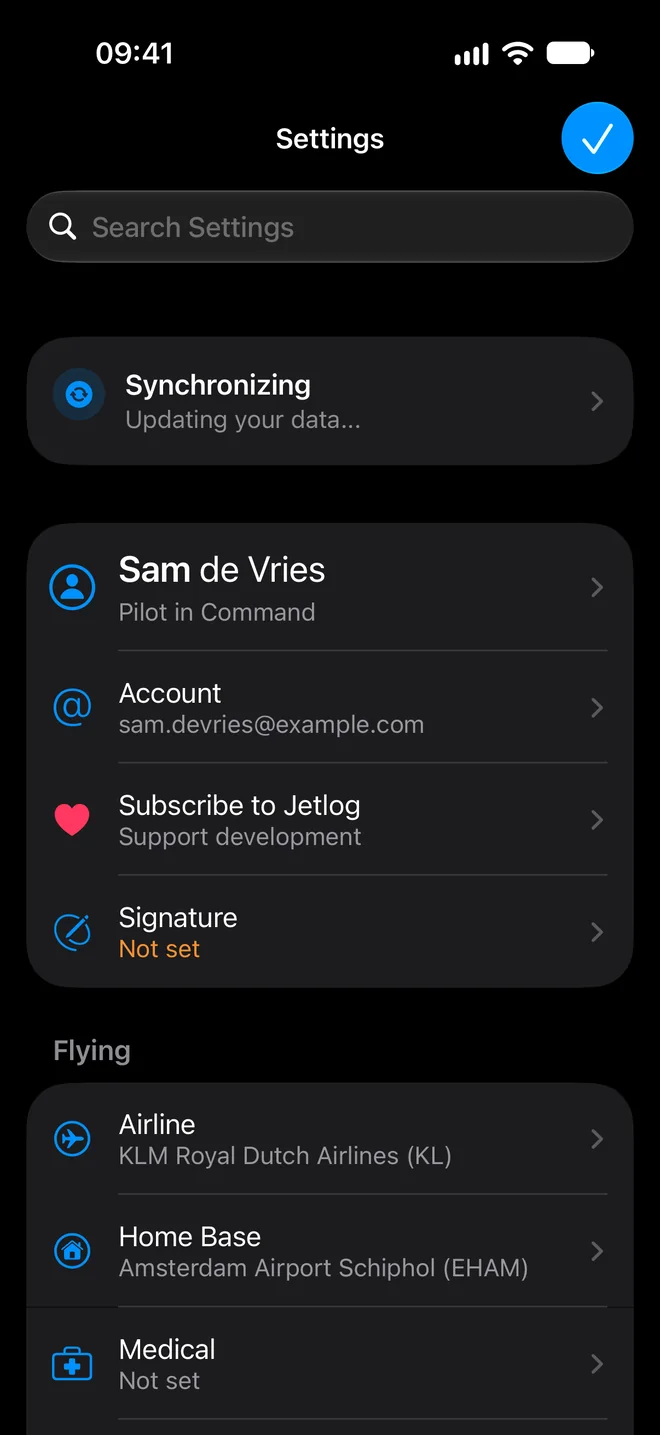
The card at the top shows the sync state: "Synchronizing", "Connected" or "Synchronized". Tap it to open the Sync history. See Sync and your devices.
At the top #
The rows at the top have no section header.
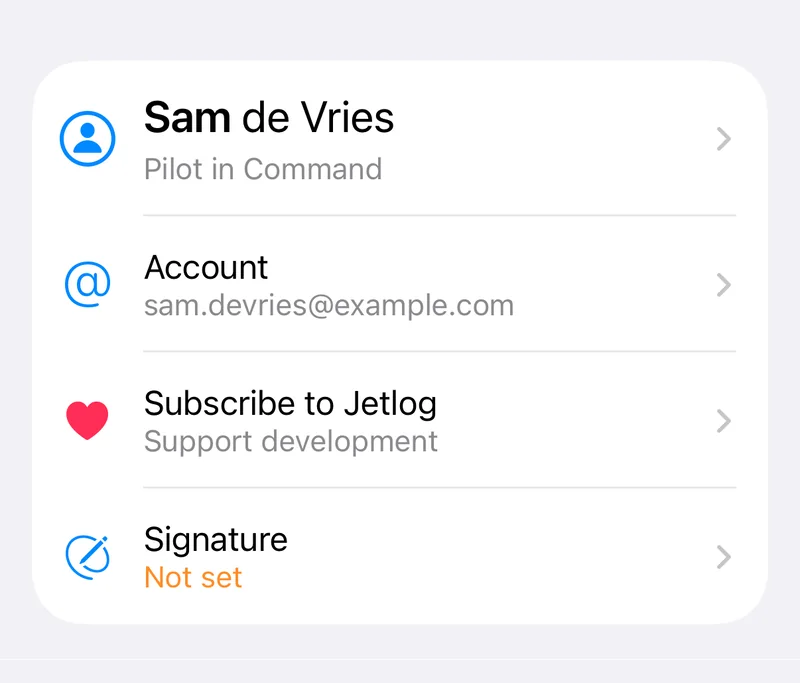
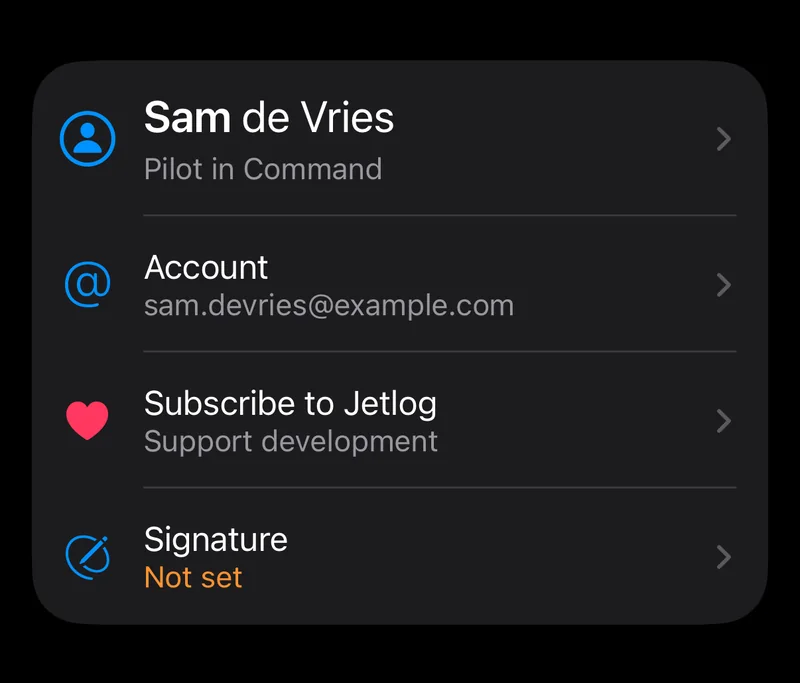
- Your name: the first row opens Your Details, with your name and default role. It reads "Add your name" while empty.
- Account: your email, passkeys, devices, Sign Out and account deletion. See Signing in and Deleting your account.
- Subscription, or Subscribe to Jetlog if you are not subscribed. See Your subscription.
- Signature: your saved signature, shown as Configured or Not set. See Signing your flights.
Flying #
- Airline: your flight-number prefix. It drives the Choose a Flight list and the operating carrier. See Logging a flight by hand.
- Home Base: tells home flights from away flights. The picker has Browse All Airports and Clear Home Base.
- Medical: your medical class and date, used for the medical line in your currency overview. Jetlog does not check validity rules. See Currency, medical and flight time limits.
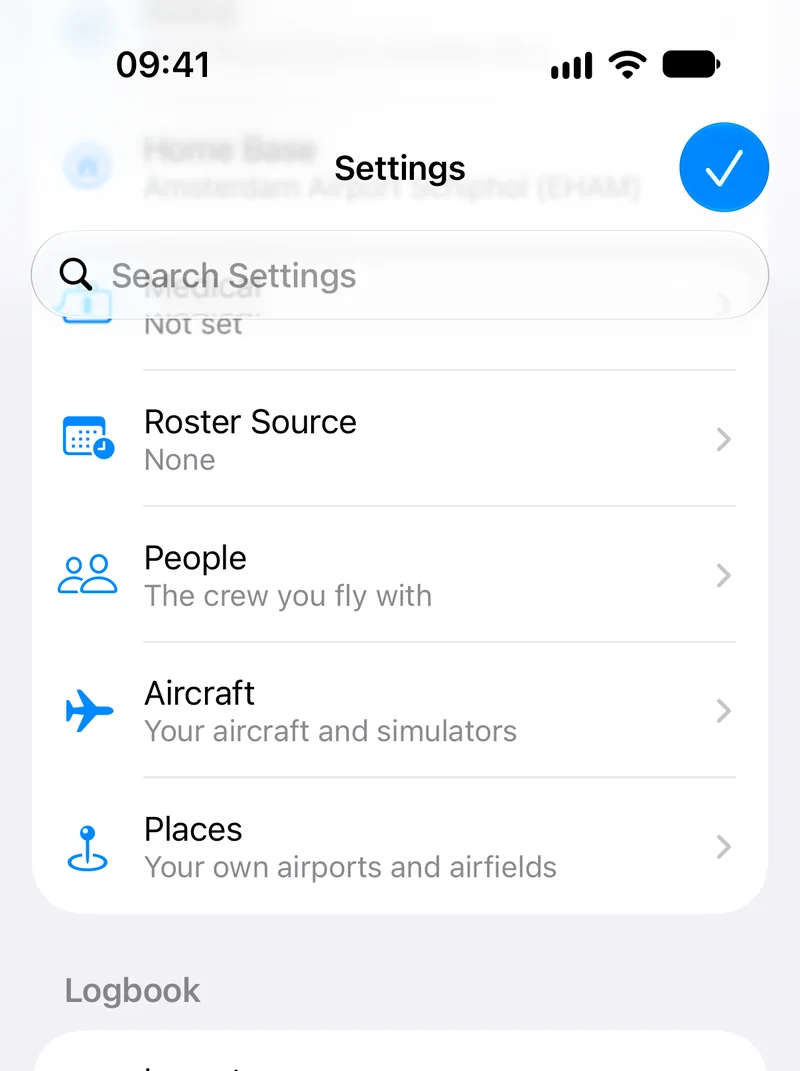
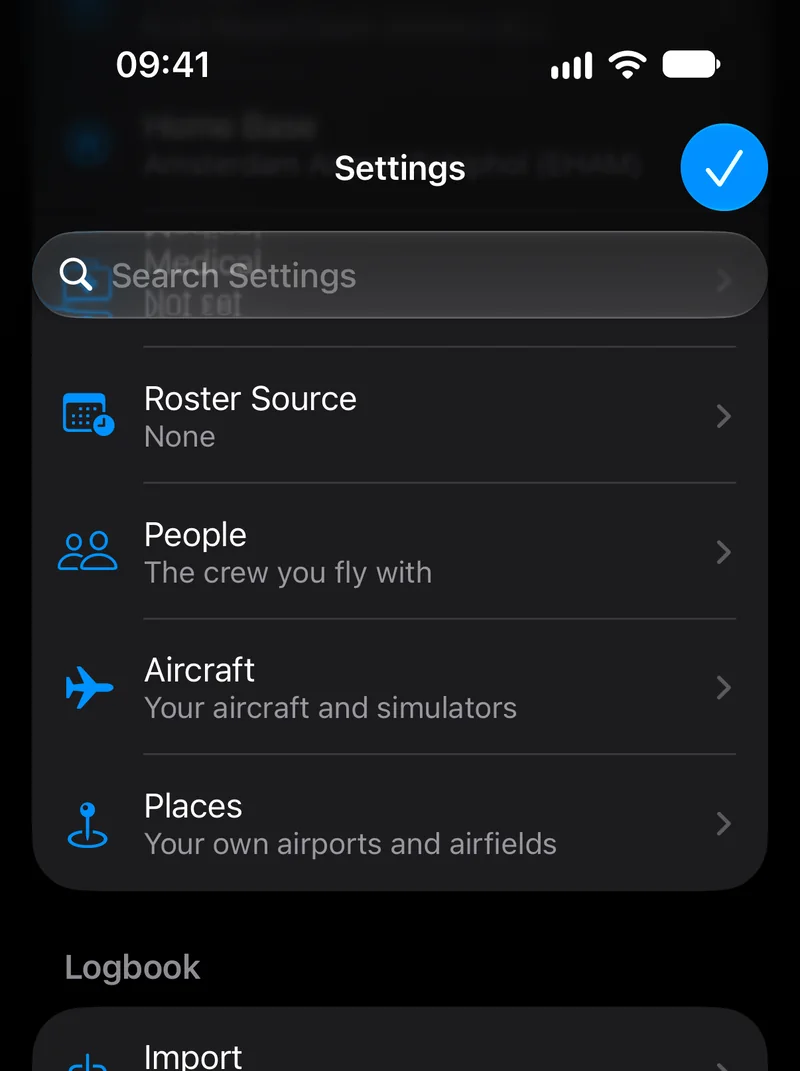
- Roster Source: where your roster comes from. See Connecting your roster.
- People: the crew you fly with.
- Aircraft: your aircraft and simulators.
- Places: your own airports and airfields. See Aircraft, people and places.
Logbook #
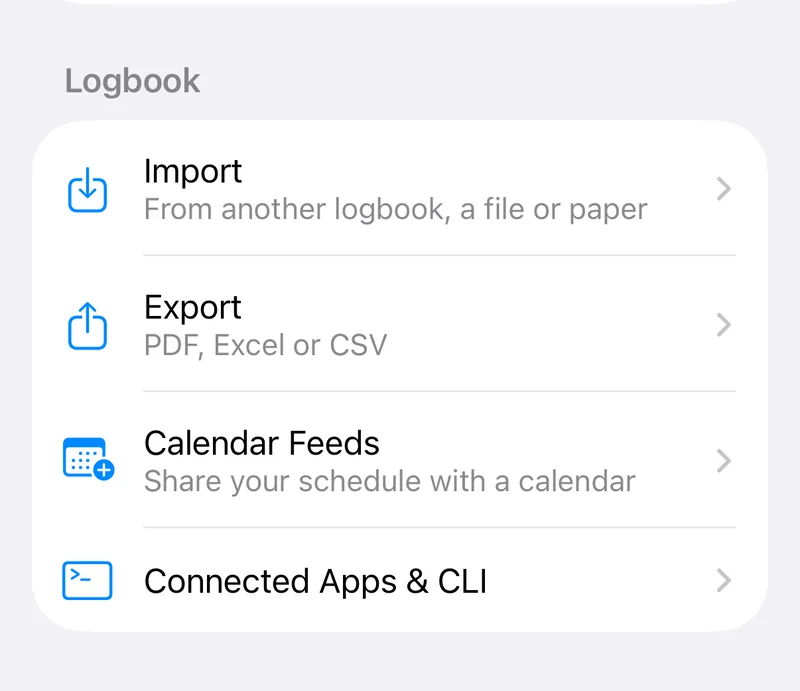
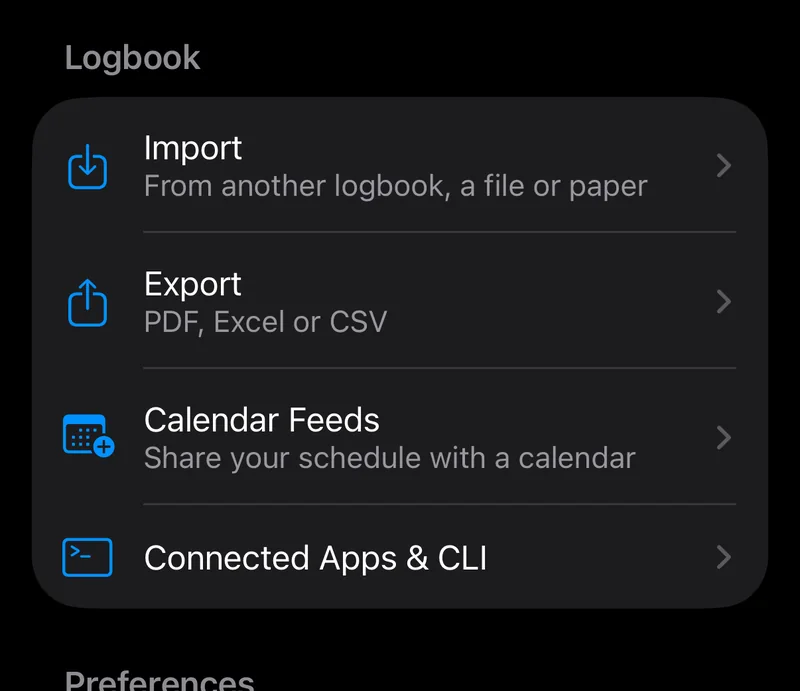
- Import: from another logbook, a file or paper. See Importing from another logbook.
- Export: PDF, Excel or CSV. See Exporting your logbook.
- Calendar Feeds: share your schedule with a calendar. See Exporting your logbook.
- Connected Apps & CLI: access for AI assistants and the command line. See AI assistants: Claude, ChatGPT and others and The command line tool.
Preferences #
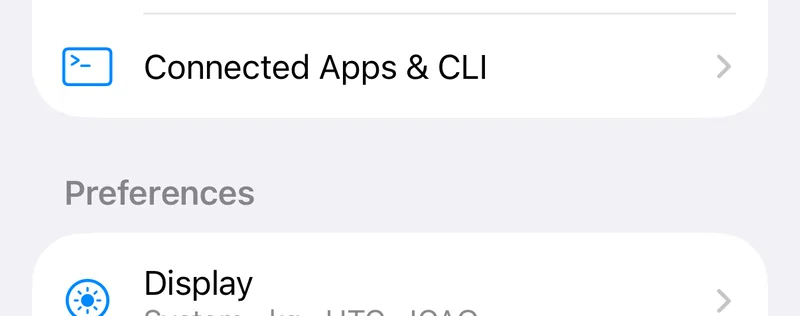
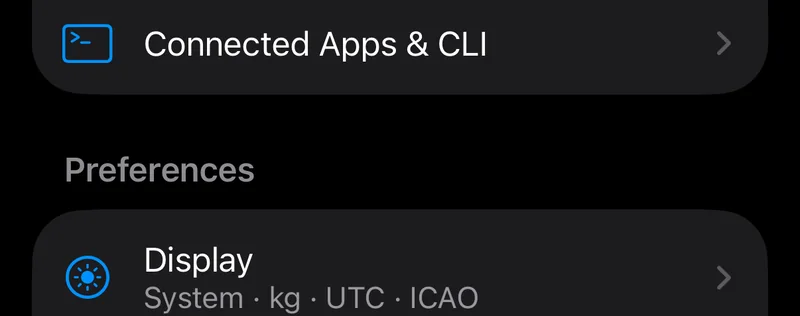
- Display: see below.
- Entry details: the order and visibility of the sections on a flight's detail screen. Drag to reorder. The flight header, issues and times always stay at the top. Reset to Default restores the order.
- Notifications: Live Activities and push updates. See Notifications.
- Departure Alarms: shows On or Off. See Notifications.
Support #
- Support: opens the support page.
- Database File for Support: when Jetlog support asks for it, tap Share Database File and send the file. It is a copy of the app's database for investigating a problem and can't be loaded back into the app.
- About: version, privacy and terms.
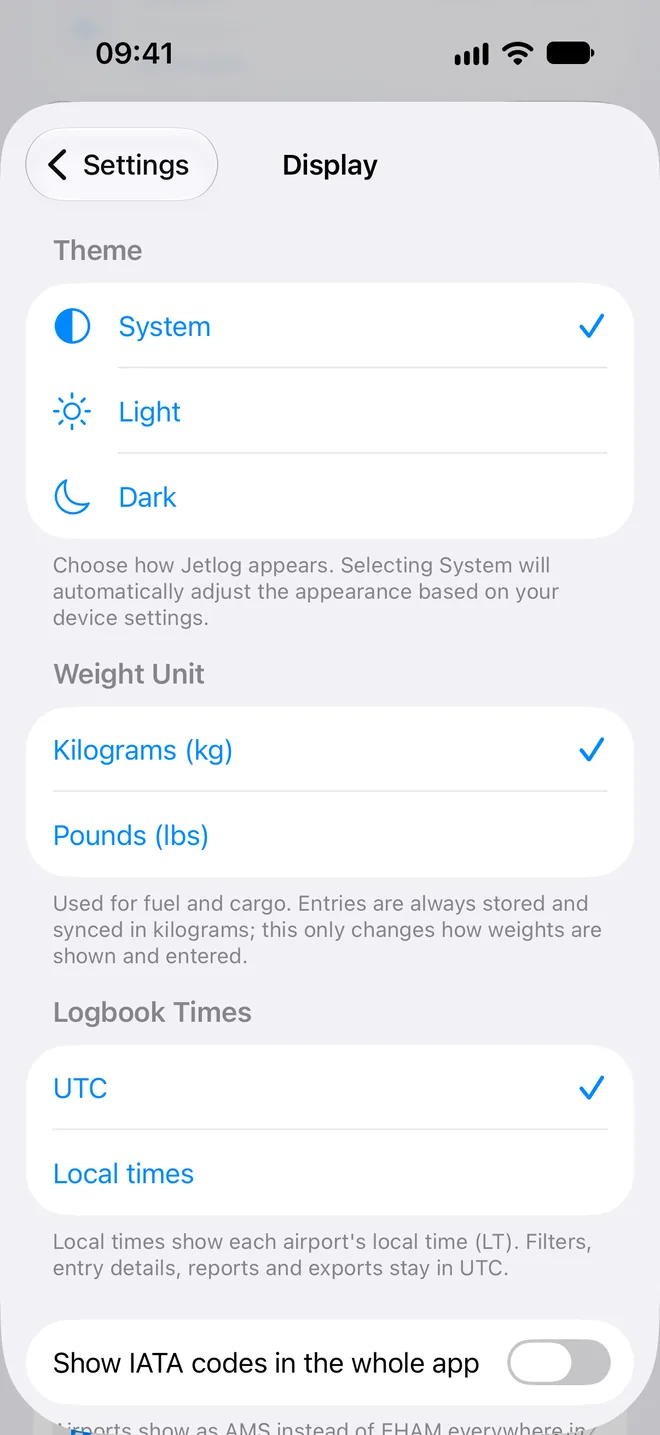
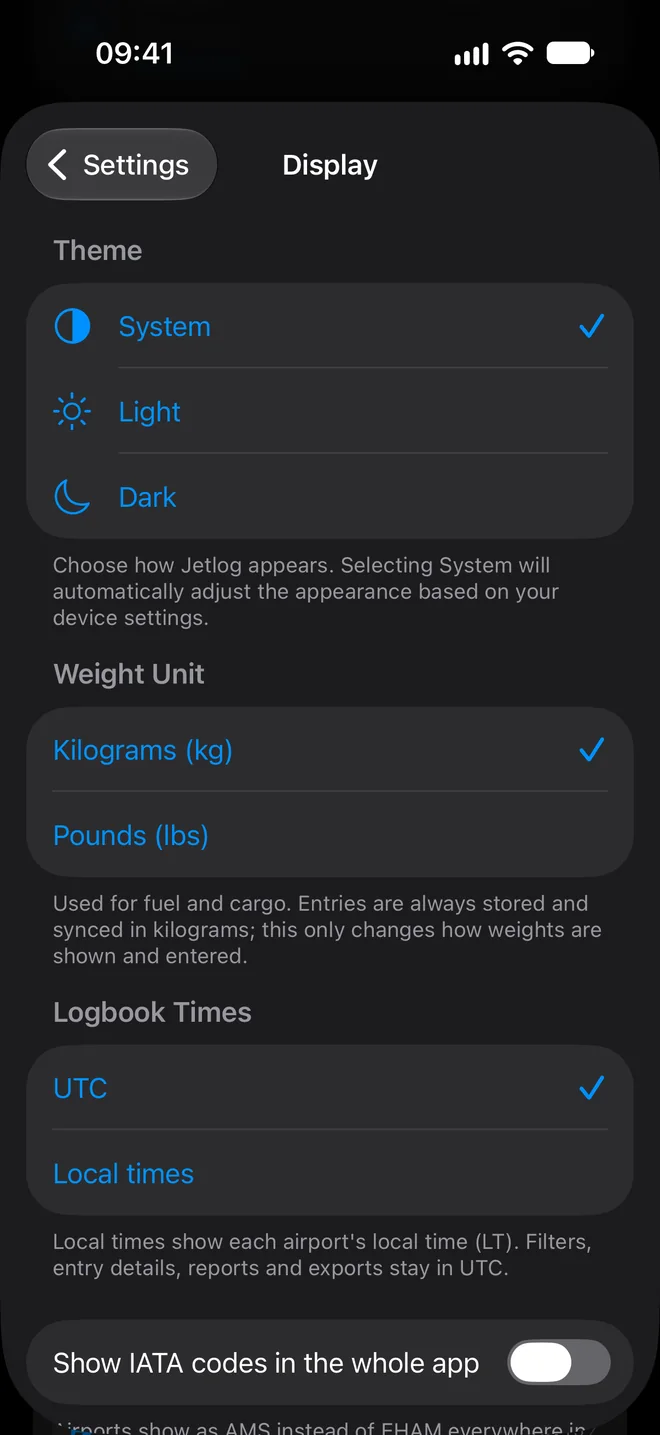
Display #
- Theme: System, Light or Dark. This is stored on the device.
- Weight Unit: Kilograms (kg) or Pounds (lbs), used for fuel and cargo. Entries are always stored in kilograms.
- Logbook Times: UTC or Local times. This changes the rows of the Logbook list only. Filters, entry details, reports and exports stay in UTC. The flight detail has its own UTC and LT switch.
- Show IATA codes in the whole app: airports show as AMS instead of EHAM. An airport without an IATA code keeps its ICAO code.
- Show ICAO codes in the EASA logbook export: keeps four-letter codes in the export while the app shows IATA codes. It is switched on and greyed out while the app shows ICAO.
The two airport code switches are also behind the Airport Codes row at the top of Settings > Flying > Places.
Still stuck? Write to support and a pilot answers.