
The command line tool
Install the jetlog command, sign in with the app, and look things up, import, export and add files, photos and signatures from your computer.
On this page
The command line tool is a program called jetlog that runs in a terminal on Mac, Linux or Windows. It reads your logbook, imports files, exports everything and uploads files, photos and signatures from your computer. It needs Node.js 20 or newer.
Install the tool #
npm i -g jetlog-cli
jetlog --help
To run it once without installing, use npx -y jetlog-cli@latest <command>. To update an installed copy, run npm i -g jetlog-cli@latest. The tool tells you once a day when a newer version is out, and a version that is too old is refused with a message that tells you to update.
Some commands work without an account: jetlog convert, validate, schema, link, times, totals <file> and guide. Night time and distance figures need an account, because the tool carries no airport data of its own.
Sign in with jetlog login #
- Run
jetlog login. For a login that may also change your logbook, files, photos and signatures, runjetlog login --scope write. - The terminal prints a two digit number and a QR code. Scan the code with your iPhone camera.
- In the Approve Login screen, check the switches under Access. For a
--scope writelogin, Make changes to your logbook is shown and starts on. Leave it on, or the login can only read and the tool says so. - Under Token, give the login a Name and choose Expires: 7 days, 30 days, 90 days or 1 year, or No expiry.
- Tap the number shown in the terminal. Jetlog asks for Face ID or your passcode and approves.
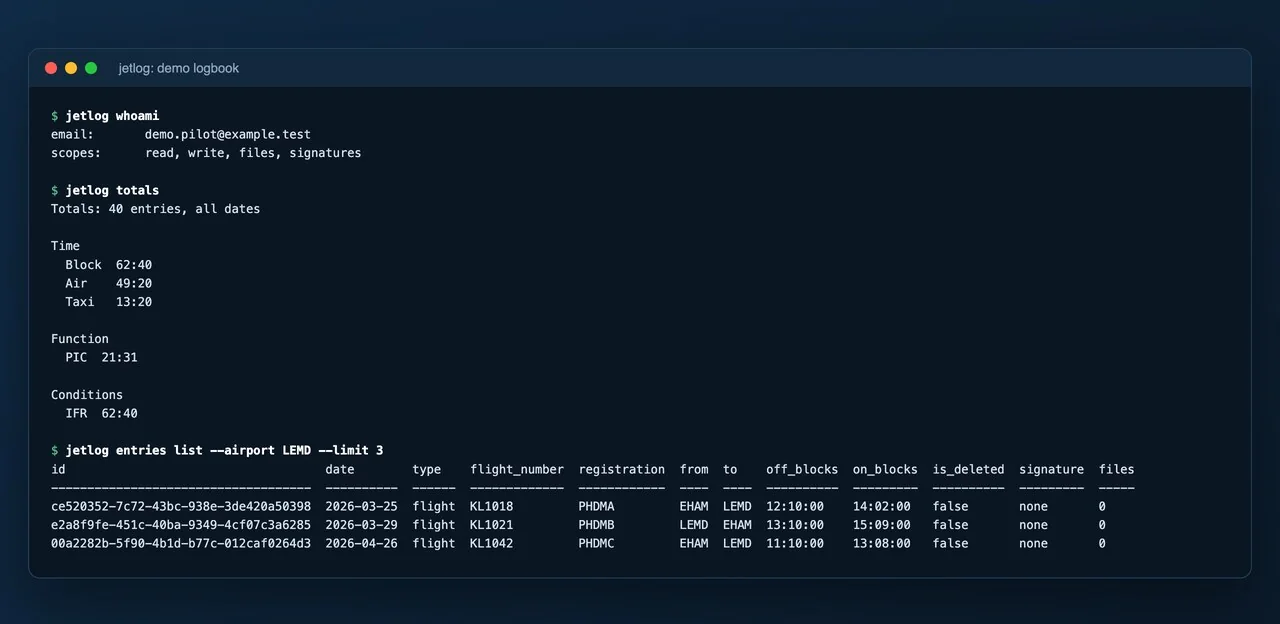
With no camera at hand, open the link the terminal prints and enter the code, or open Settings > Connected Apps & CLI in the app, tap Connect an App and type the code. jetlog whoami shows which account and permissions the login has. The login is stored on your computer in ~/.config/jetlog/credentials.json, or in %APPDATA%\jetlog on Windows.
jetlog logout removes the login from your computer only. To end it for good, revoke it in the app under Settings > Connected Apps & CLI, as described in AI assistants: Claude, ChatGPT and others.
Look things up #
| Command | What it shows |
|---|---|
jetlog entries list |
Your entries. Narrow it with --from, --to, --type flight or fstd, --registration, --airport, --flight-number, --person-id, --role |
jetlog people |
People in your logbook |
jetlog aircraft |
Aircraft in your logbook |
jetlog places |
Your airports. --search filters by code or name |
jetlog totals |
Flight time totals for your account |
Add --json, --csv or --table to entries, people, aircraft and places to choose the output, and --json to totals. jetlog entries list shows 50 entries unless you set --limit (up to 200) or add --all for every page. --include-deleted includes deleted entries. For example:
jetlog entries list --from 2026-01-01 --airport EHAM
--since and --until (YYYY-MM-DD) limit jetlog totals to a date range. With a file name and --from <format>, for example jetlog totals logbook.txt --from logten, it totals that file instead of your account.
Import a logbook file and undo it #
- Sign in with
jetlog login --scope write. - Preview first:
jetlog import logten-export.txt --from logten --dry-run. This writes nothing. - Run the same command without
--dry-run. The tool shows the preview and asks you to confirm.
--from takes logten, pilotlog, flylog, safelog, skylife, rblogbook, flightlogger, chrono, monthly-overview, excel, jetlog-csv, deeplink-json or auto. Entries that already exist are updated, not duplicated. Add --label to name the import.
Every import is a batch.
jetlog batches list
jetlog batches remove <id>
Removing a batch deletes the entries it created and the people it created that nothing else uses. Entries you signed in the app are kept, and so are entries signed through a signing link unless you add --include-link-signed. The tool shows what it will remove and asks you to confirm. jetlog batches remove --all-cli removes everything the tool imported.
Export your logbook #
jetlog export -o logbook.json
jetlog export --format csv -o logbook.csv
The export covers your whole logbook. --include-deleted adds deleted entries.
Add and download files #
jetlog attachments list <entry-id>
jetlog attachments get <attachment-id> -o ~/Documents
jetlog attachments add <entry-id> scan.pdf photo.jpg
jetlog attachments remove <entry-attachment-id>
An entry holds up to 20 files of 25 MB each, in PNG, JPEG, HEIC or PDF. attachments add and remove need a login made with --scope write. get will not overwrite a file unless you add --force.
Set and download person photos #
jetlog photos set <person-id> portrait.jpg
jetlog photos get <person-id>
A photo is a PNG or JPEG of up to 2 MB.
Signatures #
jetlog signatures show <entry-id> tells you whether an entry is signed or waived, and jetlog signatures get <entry-id> downloads the signature image. The rest needs a login made with --scope write.
jetlog signatures attach <entry-id> signature.png
jetlog signatures remove <entry-id>
jetlog signatures waive <entry-id>
jetlog signatures unwaive <entry-id>
jetlog signatures request <entry-id> <entry-id>
jetlog signatures revoke <request-id>
attach puts a PNG of up to 5 MB on an entry and replaces an existing signature. request creates a remote signing link for up to 20 entries, valid for 48 hours, and prints it once. revoke ends such a link. A waived signature is not accepted by an authority.
Attach many signatures at once #
jetlog signatures attach-many puts signature images on many entries in one go. List them in a JSON file, with paths relative to the folder of that file.
[
  { "entry_id": "ENTRY-ID-1", "file": "signatures/one.png" },
  { "entry_id": "ENTRY-ID-2", "file": "signatures/two.png" }
]
jetlog signatures attach-many list.json
Entries that are already signed are skipped, unless you add --replace. The whole run is one change with one notification, and it appears as one line in jetlog batches list. The limit is 200 signatures per hour.
--replaceandsignatures removedelete the signature that is there. Check the entry first.
Copy them from PilotLog on a Mac #
The script pilotlog-signatures.mjs copies the signature images out of PilotLog on your Mac and puts them on the matching flights with attach-many. It works with PilotLog from the App Store on an Apple silicon Mac and with PilotLog from Crew Lounge's own installer on an Intel Mac. Download it from the examples folder on GitHub and run it in the folder where you saved it:
node pilotlog-signatures.mjs --attach --dry-run
node pilotlog-signatures.mjs --attach
The first command shows which flight each signature would go on and changes nothing. Importing from CrewLounge PILOTLOG has the full steps, and a way without a Mac.
Two accounts and scripts #
Add --profile work to jetlog login and to every later command to keep a second account apart. Without it the tool uses the profile named default.
For a script on a machine where you cannot sign in with the app, set the environment variable JETLOG_TOKEN to a token. It overrides the stored login. jetlog token print shows the token of the current login, so treat its output like a password. Add --yes to a command to skip its confirmation question, and --json where it exists for output a script can read.
Edits to existing entries go through jetlog changes propose, which prints a preview and a change id, and jetlog changes apply <id>, which asks you to confirm. Each applied change shows up in the app under Settings > Connected Apps & CLI > Logbook Changes, where you can undo it.
Use it with a coding agent #
jetlog skill install teaches Claude Code and Codex how to use the tool, and jetlog guide prints the guide the agent reads. Setup and the confirm step are described under Claude Code, Codex and other coding agents.
Still stuck? Write to support and a pilot answers.