
Rosters from a calendar link
Paste an iCal link from your crew app into Jetlog so your roster flights are added and kept up to date.
Paste the iCal link from your crew app under Settings > Flying > Roster Source > Calendar, and Jetlog reads your roster by itself from then on. Both https:// and webcal:// links work.
- Copy the link from your crew app, see below.
- In Jetlog, open Settings > Flying > Roster Source and tap Calendar.
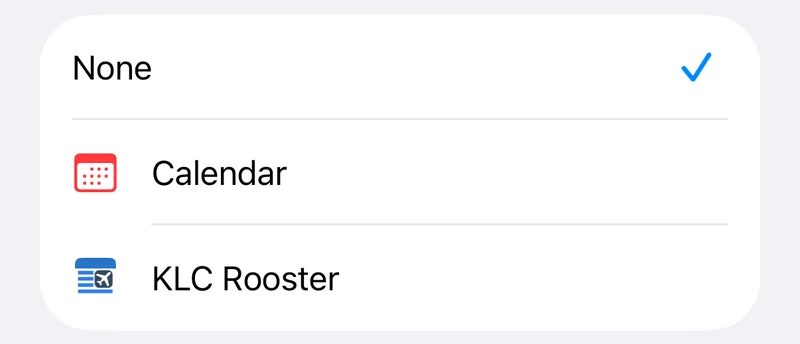
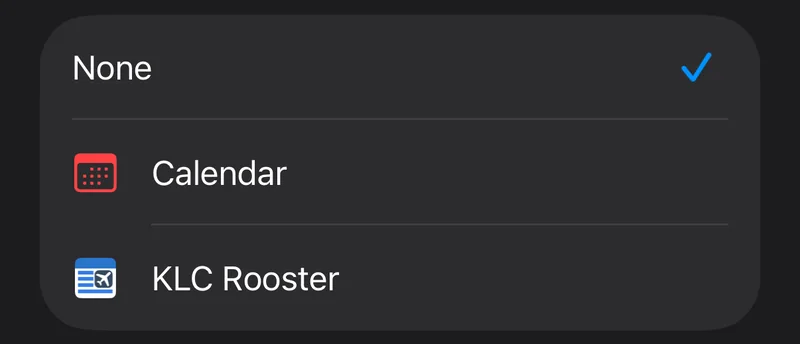
- Tap Paste from Clipboard, or paste into Calendar URL.
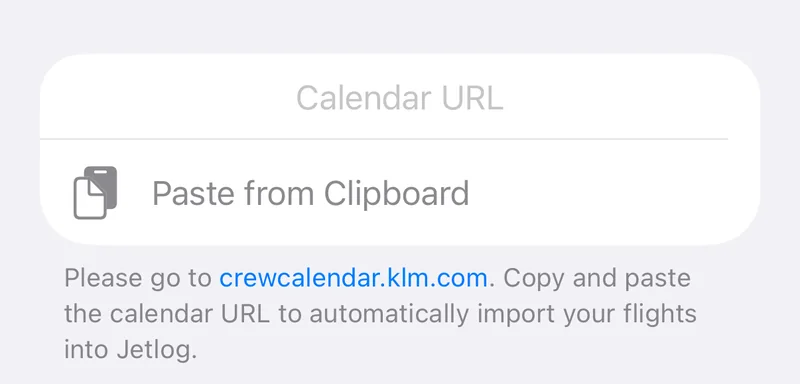
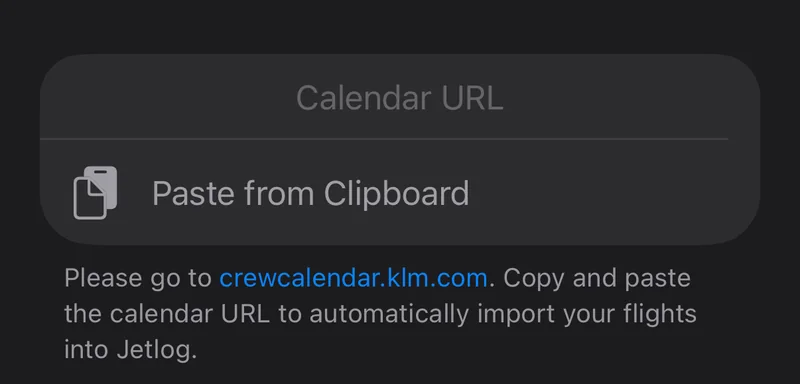
- Tap Save.

If the clipboard holds no link, Jetlog says so with "No calendar link found on the clipboard."
Jetlog then checks the link about every 15 minutes and adds the flights that are still to come. What a roster import never changes, and what the status text next to Roster Source means, is on Connecting your roster.
Get the link from your crew app #
The text under the link field changes with your airline. This is what it asks for.
- KLM: go to crewcalendar.klm.com and copy the calendar URL.
- Transavia: open the CRP (Crew Roster Planner) app and publish your roster calendar via iCloud with Publish Calendar. Copy the link it gives you.
- TUI airlines: in RosterBuster, open Export to Calendar and tap WebCal Link Subscription. Copy the link. This works for TUI Airways, TUI fly Belgium, TUI fly Deutschland and TUI fly Netherlands.
- Other airlines: use the link your airline's crew app or roster system gives you. Jetlog does not have a list of supported apps for these. Any iCal link can be tried, and if the flights do not come across, send the link format to support@jetlog.app.
RosterBuster users on other airlines can use the same route: Export to Calendar, then WebCal Link Subscription.
What comes across #
Flights with a flight number and two airports are added. Simulator sessions are recognised from their event text and added as simulator sessions. Flights you already flew before your roster was connected are not added from a calendar, with one exception: for TUI fly, RosterBuster also provides flown legs with their actual block times.
Positioning legs that RosterBuster marks as dead-head or positioning are not imported.
If the link stops working #
A link that cannot be read is retried automatically. Settings shows "Trouble with your link, still retrying". If it keeps failing, it shows "Link expired, tap to fix". Generate a new link in your crew app, paste it in Calendar URL and tap Save. Or tap the orange Calendar link expired row on Roster Source to try the old link again. Flights already in your logbook stay.
If you want to see your roster before anything is added, use the file or portal imports in Connecting your roster instead.
Still stuck? Write to support and a pilot answers.