
Rosters from AIMS eCrew and Ryanair Connect
Read your roster from your airline's eCrew or from Ryanair Connect, review it, and report a problem if something is wrong.
Both imports work the same way. You sign in on your airline's own page inside Jetlog, Jetlog reads your roster, and you review it before anything goes into your logbook. Both are in beta, and Jetlog never sees your password.
You start them from Settings > Logbook > Import under From Your Airline, or from the + button in the logbook. The rows only show for airlines that can use them.
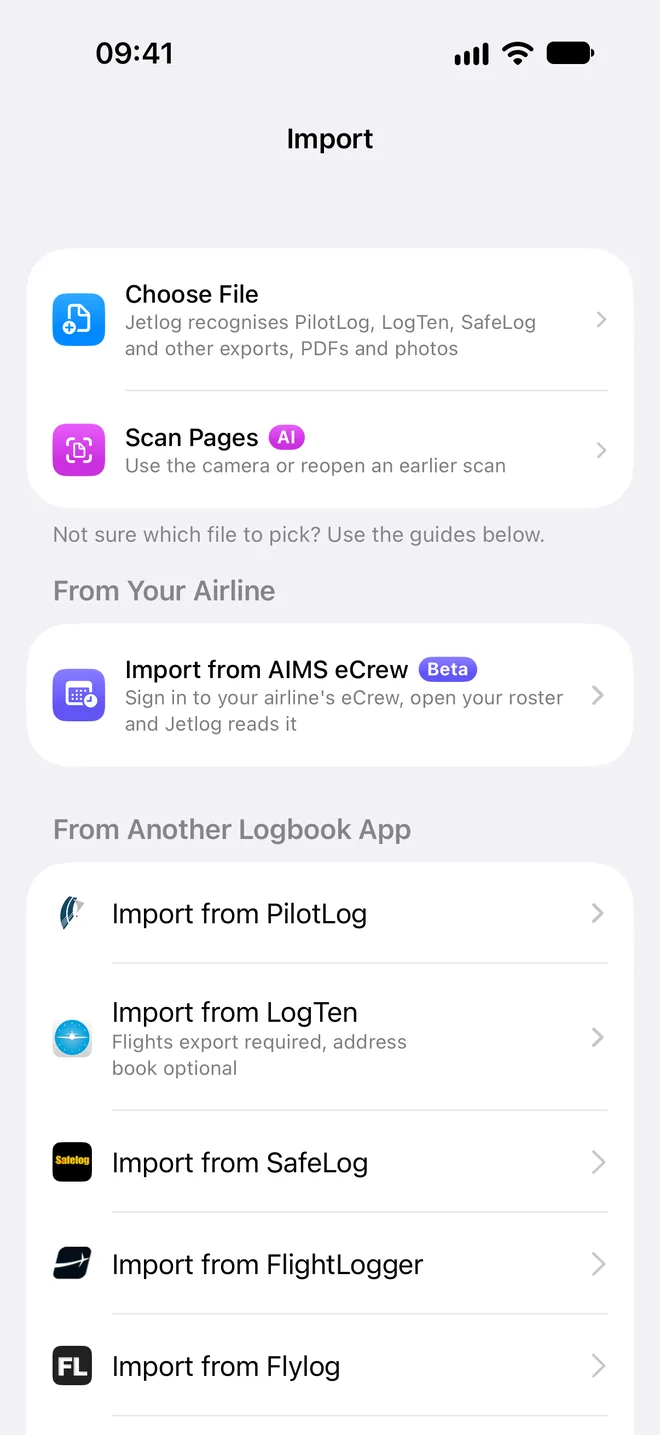
Import from AIMS eCrew #
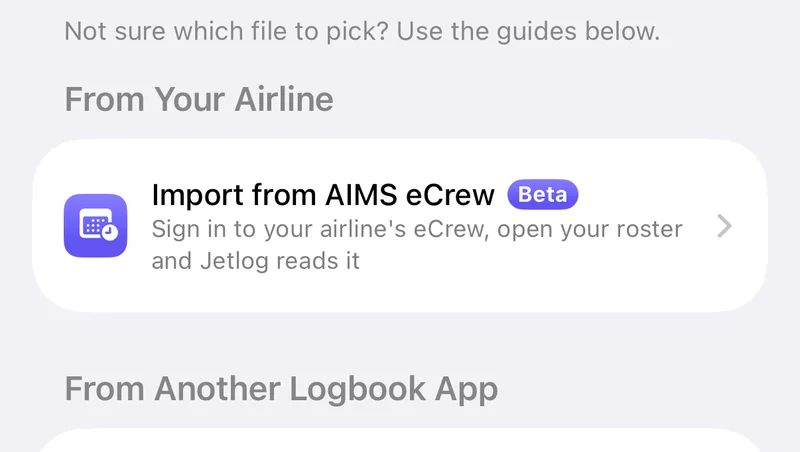
The row is Import from AIMS eCrew. It shows for every airline except KLM, Ryanair and the TUI airlines, and while no airline is chosen.
- Tap Import from AIMS eCrew.
- Under Airline, tap Choose your airline and search by name or flight prefix. If yours is not in the list, pick Other airline and enter your eCrew address. It has to start with https.
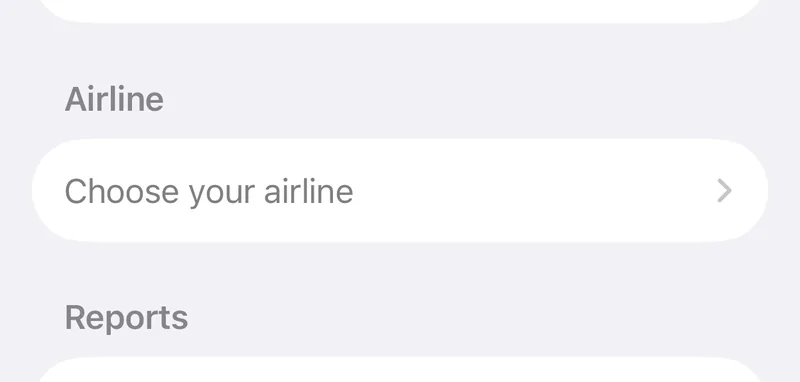
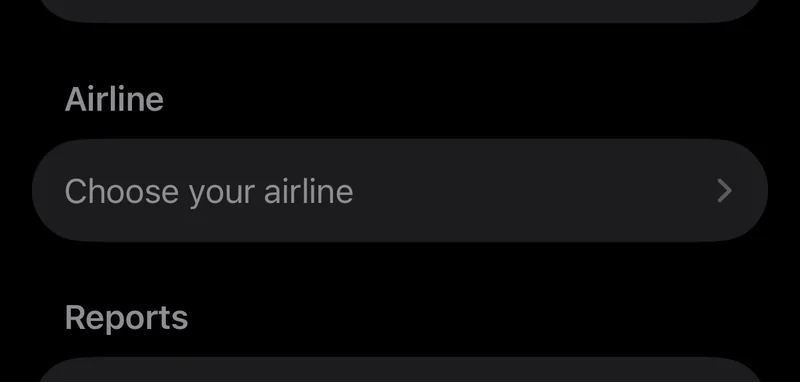
- Check that the address is the one you use for eCrew.
- Under Reports, choose Fetch:
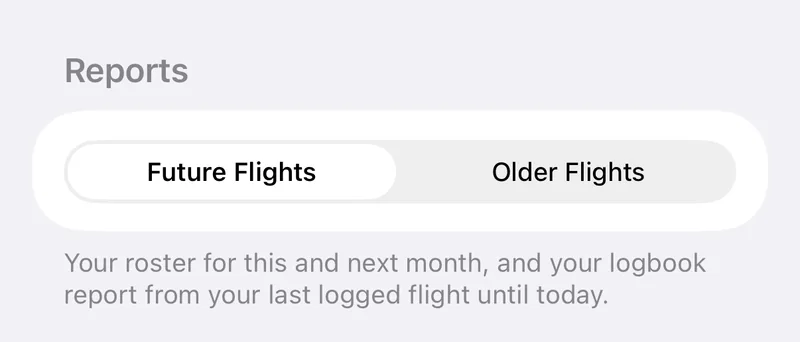
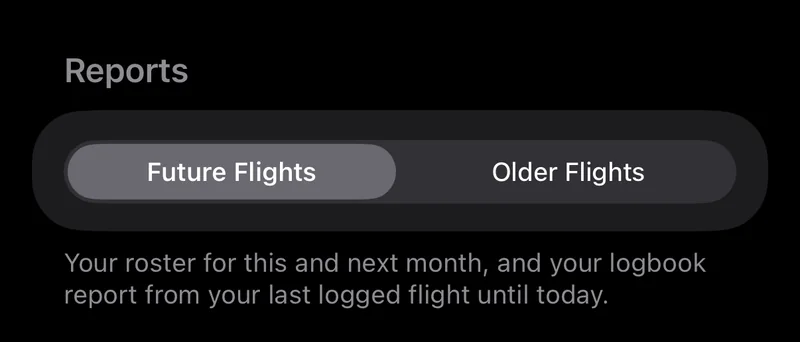
- Future Flights: your roster for this and next month, and your logbook report from your last logged flight until today.
- Older Flights: the months you choose, up to 12 months at a time. Flights you already have are matched, not added again.
- Tap Sign In. Read How This Import Works and tap Continue.
- Sign in on your airline's eCrew page.
After sign-in Jetlog reads your roster and your logbook reports by itself. The screen shows the steps, such as "Reading your roster". Keep Jetlog open until it is done, then tap Review Flights.
If the automatic read fails, you stay in eCrew. Open the month you want and tap Import This Roster. You can also save a report as a CSV file from eCrew and import that file instead.
If you leave before reviewing, the flights you read are discarded and Jetlog asks you to confirm.
The diagnostics switch #
The switch Help improve the eCrew import is on by default. When a read fails, Jetlog then sends the roster pages, the eCrew page you import from and a log of the steps, so the import can be fixed for your airline. The data can contain crew names. Your password, the sign-in page, cookies and security tokens are never sent. Turn the switch off if you prefer not to share this.
Import from Ryanair Connect #
The row is Ryanair Connect. It shows for Ryanair and Ryanair UK only.
- Tap Ryanair Connect and choose your Airline.
- Tap Open Ryanair Connect, read How This Import Works and tap Continue.
- Sign in on the Ryanair page and open your roster.
- Wait while Jetlog reads it. The first read can take half a minute. Tap Review Roster when it appears.
Jetlog reads your roster on your iPhone. Nothing leaves the device unless you tap Send or Report a Problem. Every flight has to pass accuracy checks before it is offered. A flight Jetlog doubts is marked Needs Check, with a picture of the roster to compare against.
If Jetlog does not see a roster, reload the page or tap Look Again. If it cannot read the roster, tap Send This Page to send the page as shown, with your airline and a log of the steps.
Review the roster #
Both imports end on the Your Roster screen. It is explained in Connecting your roster, including the labels on each flight, how removals work and the 10 minutes you have to tap Undo.
Flights that have already departed are left as they are. On eCrew they are logged from the Pilot LogBook report, which Future Flights fetches from your last logged flight until today and Older Flights fetches for the months you choose.
A positioning flight is added as a flight where you travel as a passenger, with role dead-head. Flights dated today or later are tracked afterwards, see How automatic flight tracking works.
Report a problem #
When something is wrong, report it from inside the import. In the eCrew session tap Report a Problem. On Your Roster tap the ⋯ button, then Report a Problem. Describe what happened under What happened? and tap Send.
The report contains your note, the page you have open, the roster pages read so far, your airline and address, and a log of the steps. It never contains your password. Reports are used only to fix the import and are deleted within 90 days.
Because both imports are in beta, tell us how it goes at support@jetlog.app.
Still stuck? Write to support and a pilot answers.