
Importing Excel and CSV files
Import Jetlog's own Excel or CSV layout, and copy a flight list from another spreadsheet into the empty template.
On this page
Jetlog imports Excel and CSV files only when they are in Jetlog's own layout. If your flights sit in another spreadsheet, save the empty template, copy your flights into it and import that.
Copy your own spreadsheet into the template #
- Open Settings > Logbook > Import.
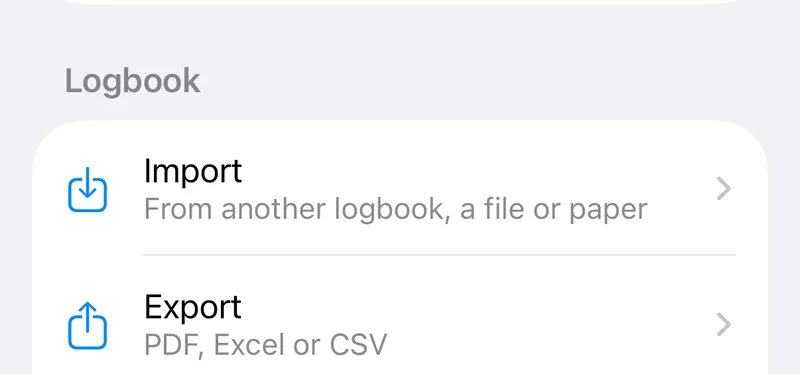
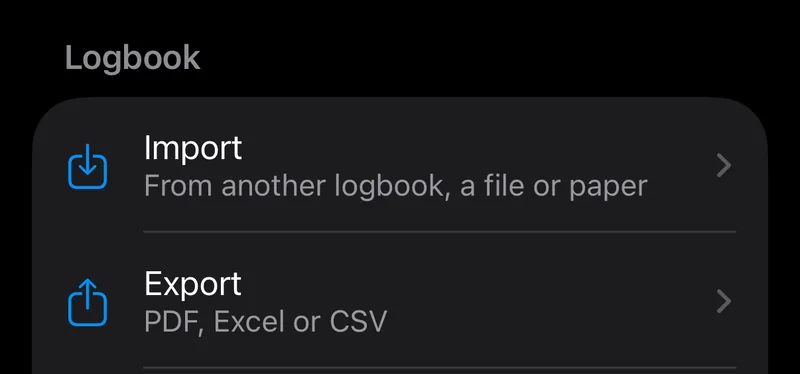
- Under Jetlog Excel / CSV Format tap Save Empty Excel Template, or Save Empty CSV Template.
- Save the file with the share sheet. The Excel template is Jetlog Template.xlsx, the CSV one is Jetlog Template CSV.zip.
- Open it on your computer and copy your flights in. The workbook has the sheets Instructions, Flights, Simulator, People and Aircraft. The Instructions sheet explains the columns.
- Bring the file back to your iPhone, for example with Files or AirDrop.
- Tap Import Excel Workbook or Import CSV Files and pick the file.
The template holds two example flights, one simulator session, one person and one aircraft. Jetlog drops the example rows on import, so an untouched template imports nothing.
Use these formats: dates as YYYY-MM-DD, times of day as HH:MM in 24 hours UTC, durations as HH:MM.
The "Not in Jetlog's format" alert #
If you pick an Excel or CSV file with another layout, Jetlog says Not in Jetlog's format: Excel and CSV import only works with Jetlog's own layout. Tap Save Template to get the empty template, or Cancel. Exports from other logbook apps are a different case. Jetlog recognises those by name, see Importing from another logbook.
Edit an export and import it again #
An Excel or CSV export from Jetlog can be edited and imported again. Every row carries a Jetlog ID. A row with an ID updates that record. A row without one matches a flight on date and registration, or a simulator session on date and FSTD. If nothing matches, Jetlog creates a new record.
Limits to know about:
- A blank manual time cell means Jetlog calculates the time itself. Clearing a cell does not remove a time that is already stored.
- Crew you remove in the file are not removed from the flight. Crew are only added.
- Only the first five crew members of a flight round-trip.
- Entries made with total previous hours are not part of the export.
You can pick several CSV files at once, or the .zip. Unchanged rows that match an existing flight show up in the review as Merge with no changes.
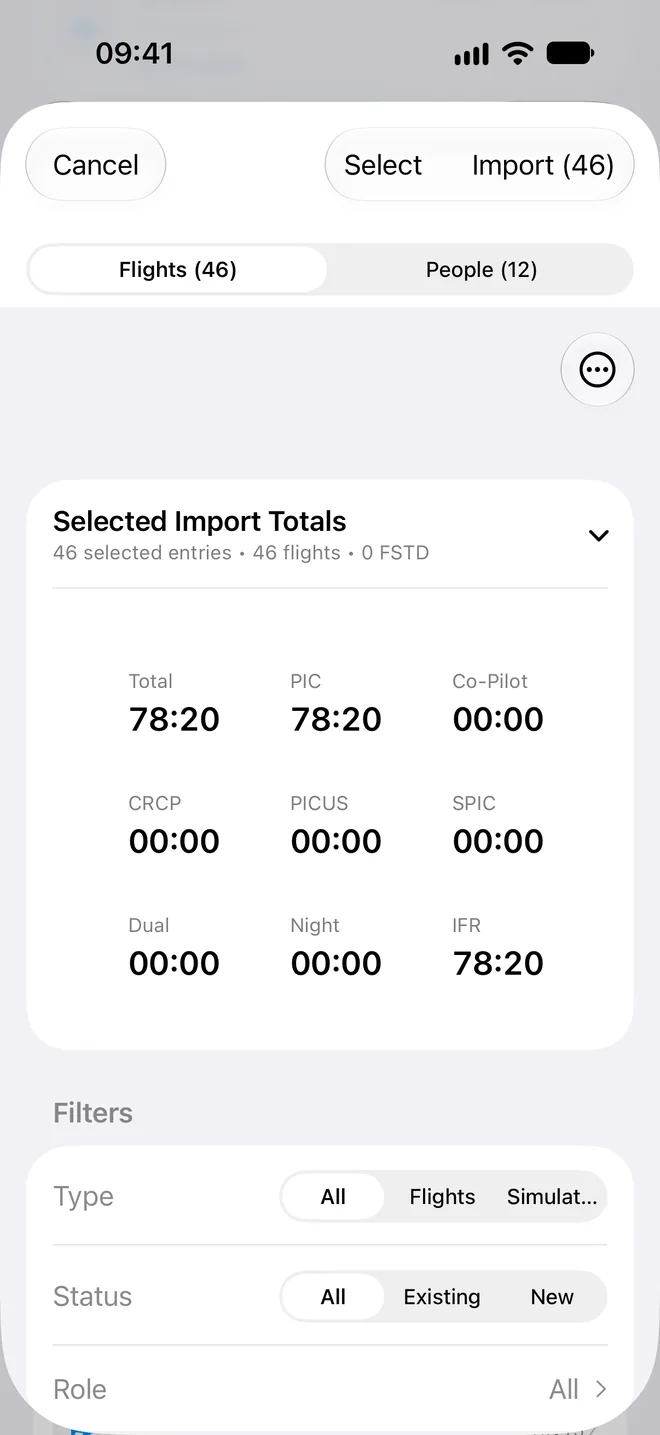
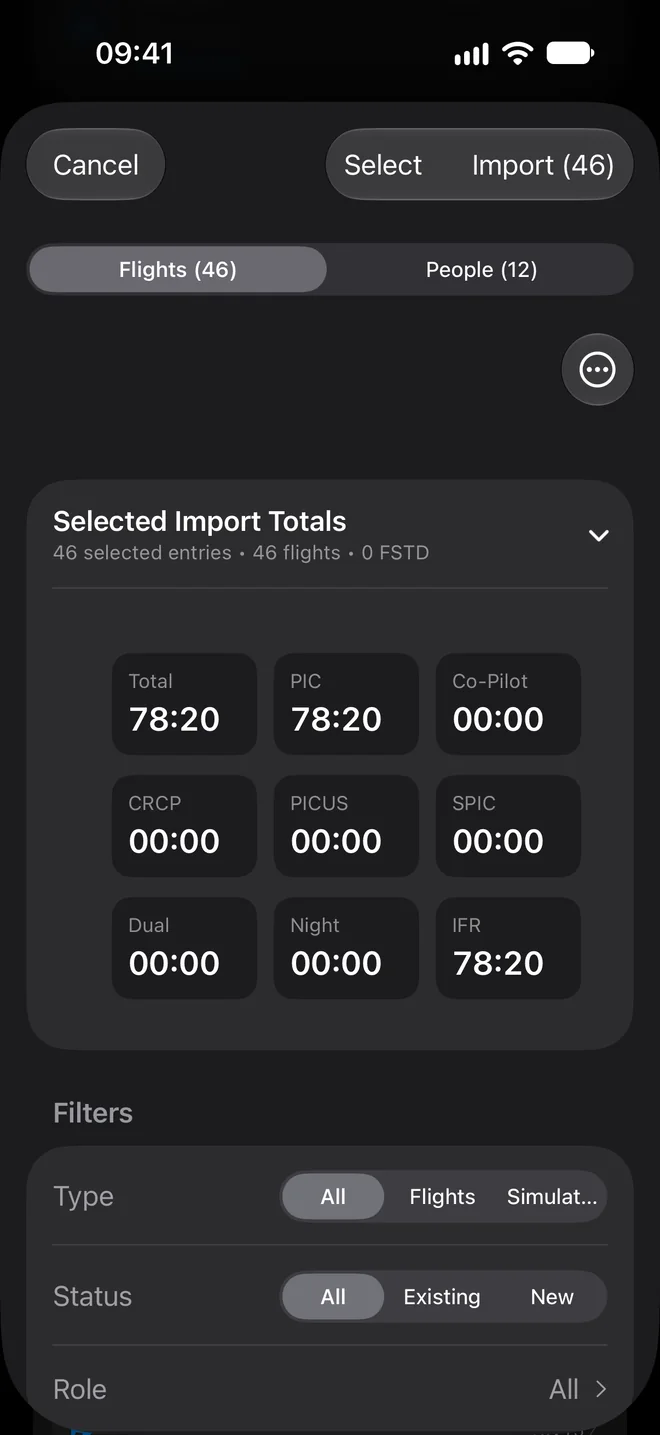
Flights imported this way are not marked as imported from another logbook, so Clean Previous Imports does not remove them. See Importing from another logbook.
Still stuck? Write to support and a pilot answers.