
Adding the hours you flew before Jetlog
Add earlier flying as totals, one line per month or role, without entering every flight.
Add your earlier flying as a few lines of totals instead of single flights. The lines count in your logbook totals and in the EASA reports.
If you have the individual flights in another app, a file or on paper, import or scan them instead. See Importing from another logbook, which also describes the import hub.
Open Previous Hours #
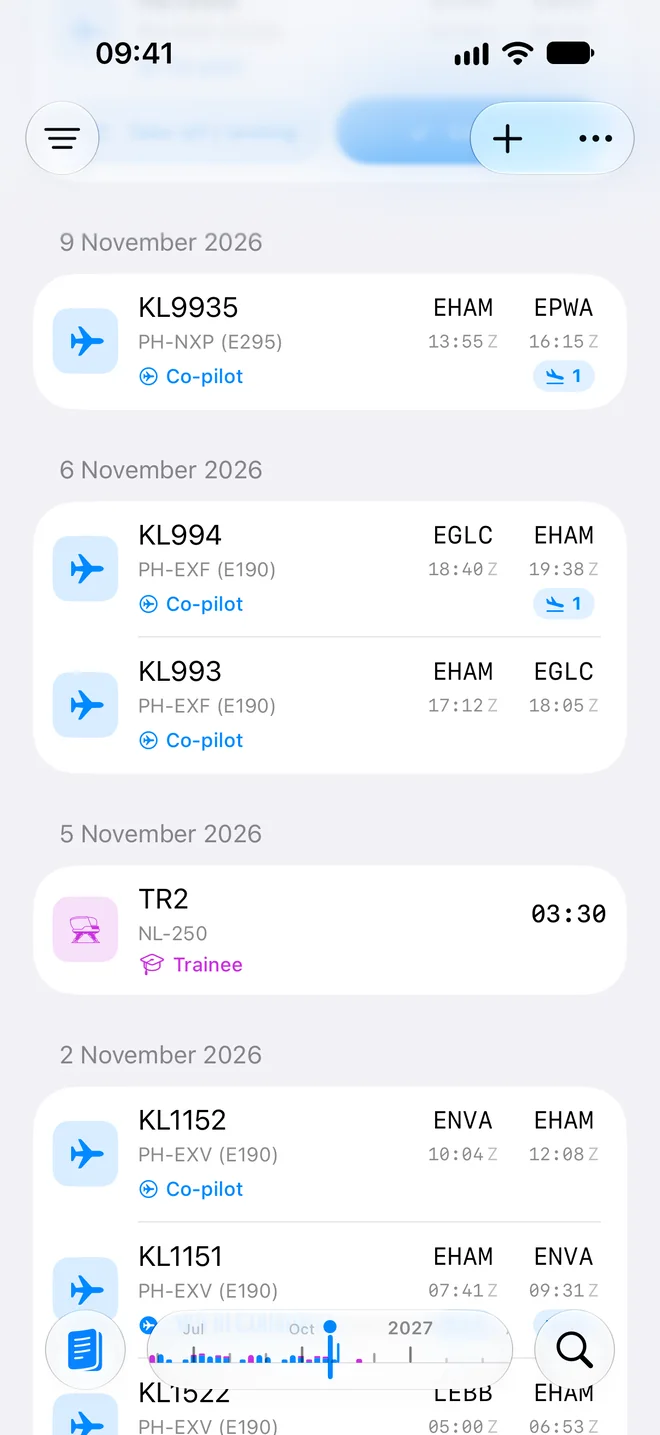
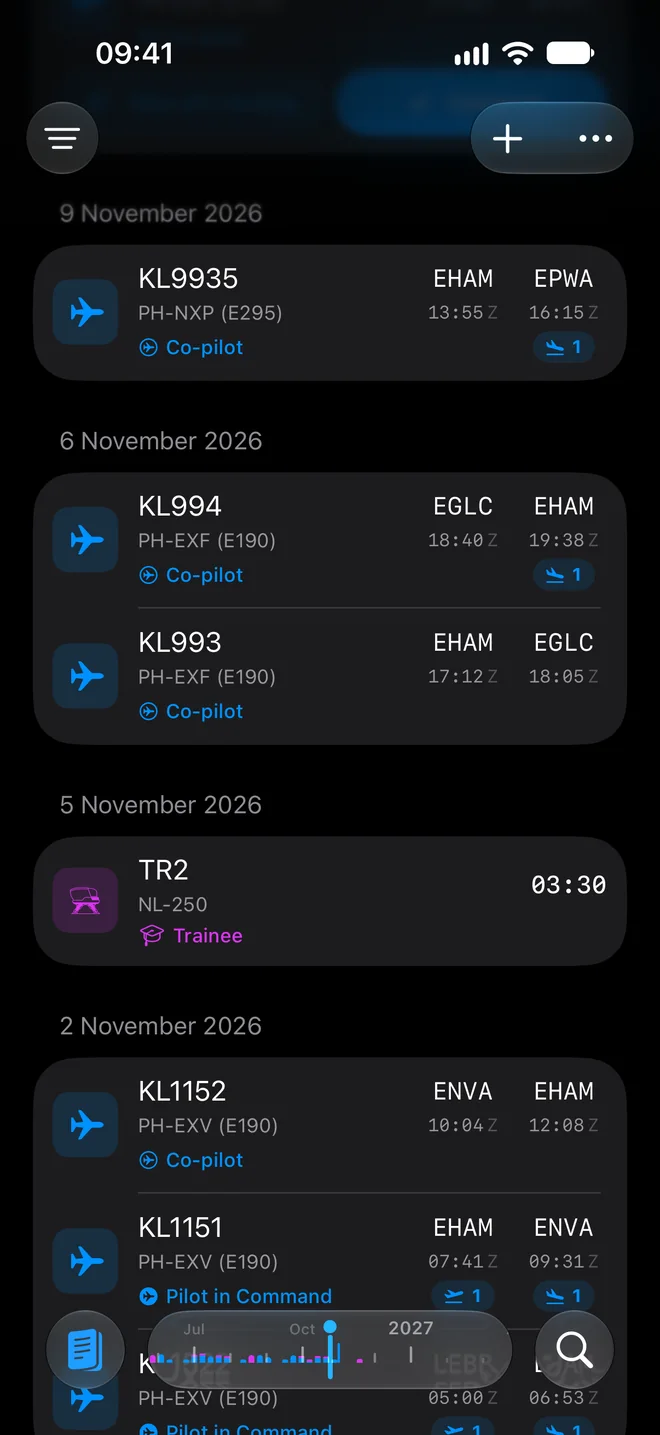
- On the Logbook tab, tap +.
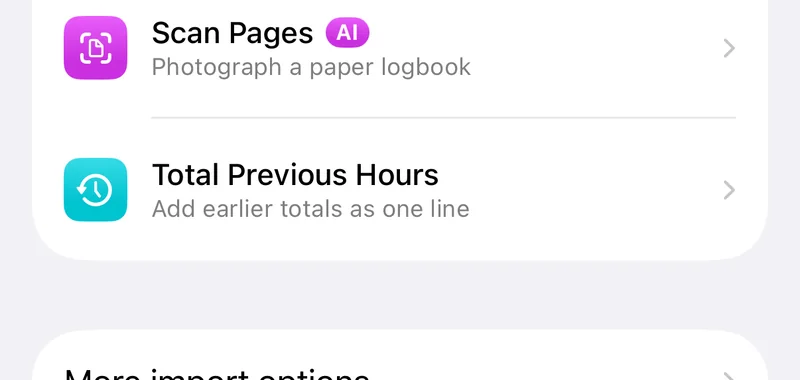
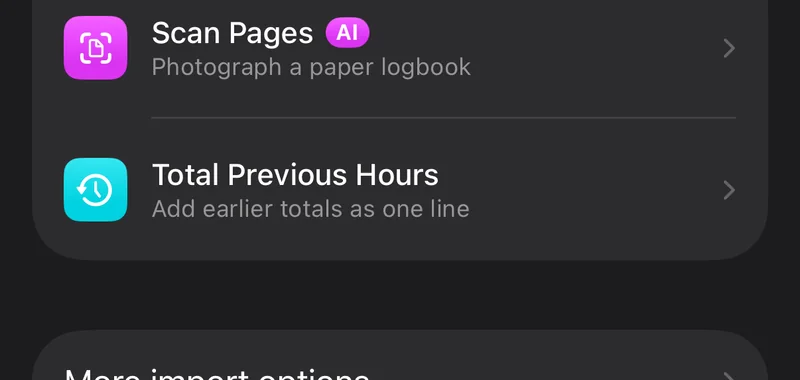
- Under Bring In Earlier Flying, tap Total Previous Hours.
The Previous Hours screen lists your lines grouped by month. When it is empty it says "No Previous Hours".
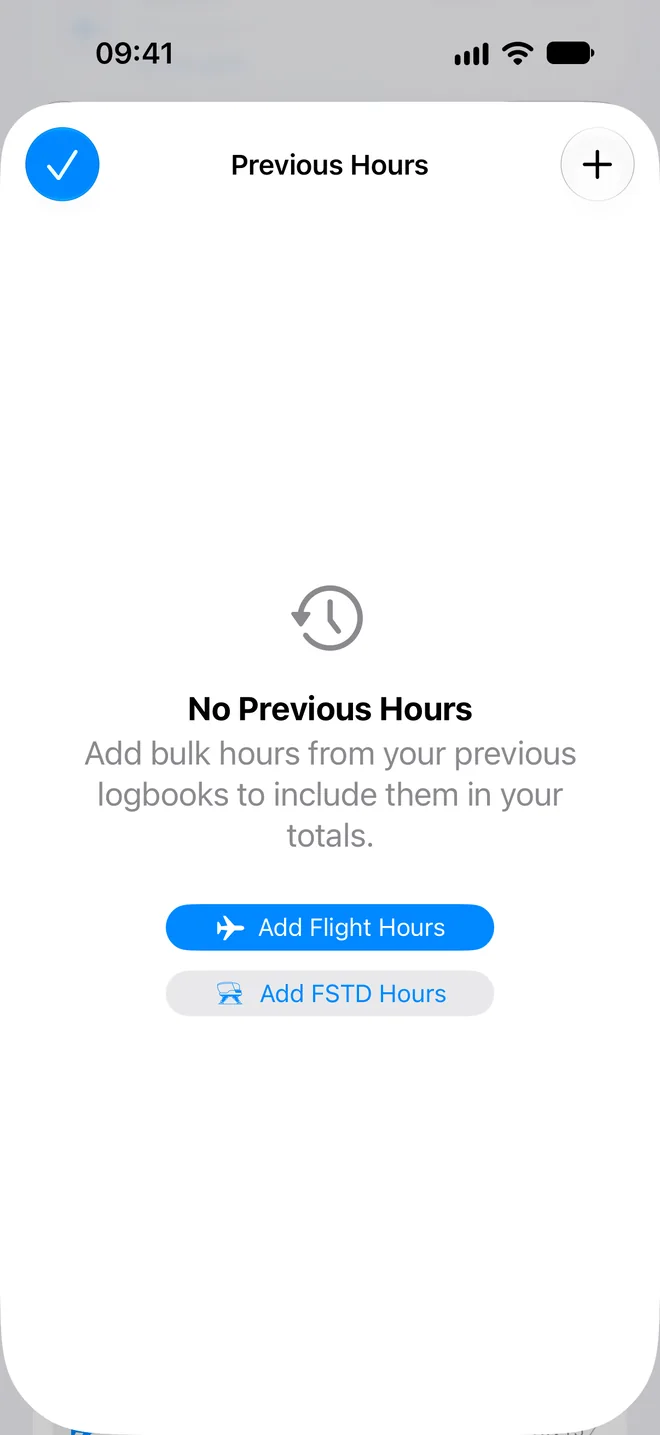
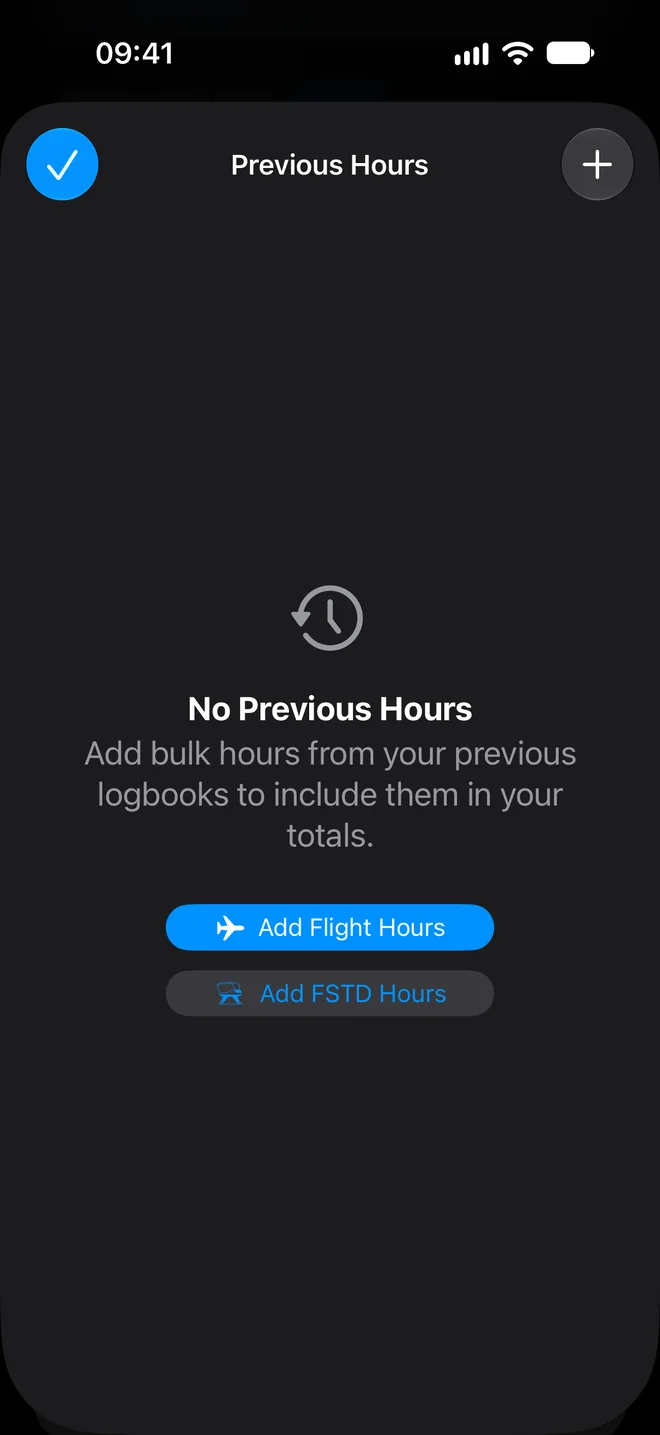
Add flight hours #
- On Previous Hours, tap + and choose Add Flight Hours. The Add Bulk Hours form opens.
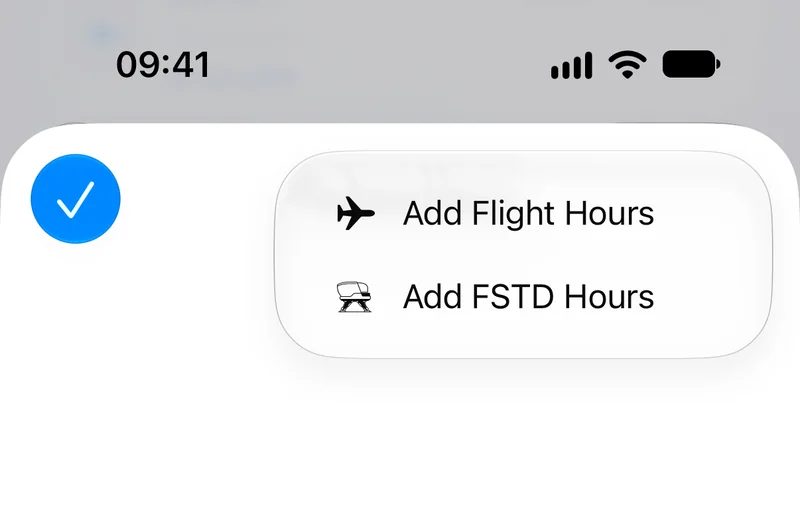
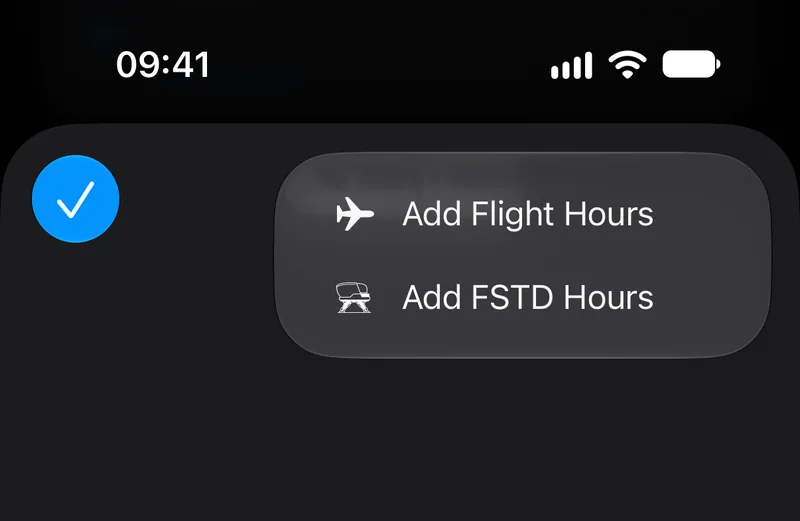
- Set the Date and the Role. The role decides which hours column the time lands in. The form has no separate PIC, co-pilot or dual fields.
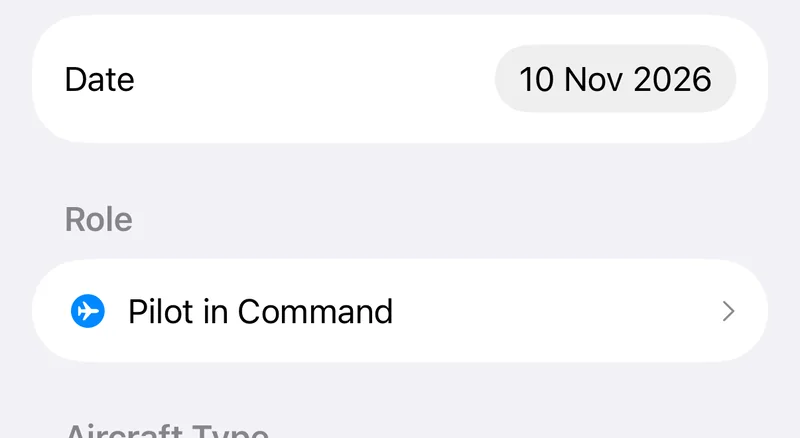
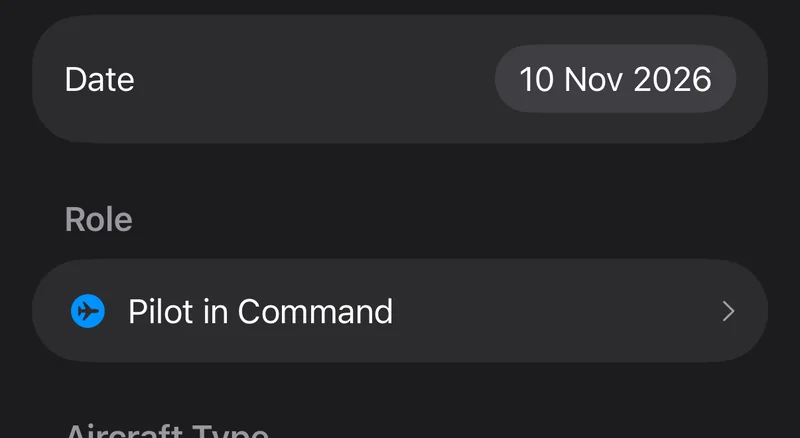
- Optionally pick an Aircraft Type from the list.
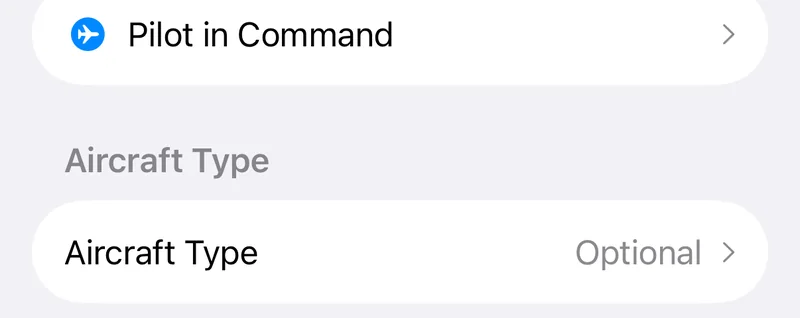
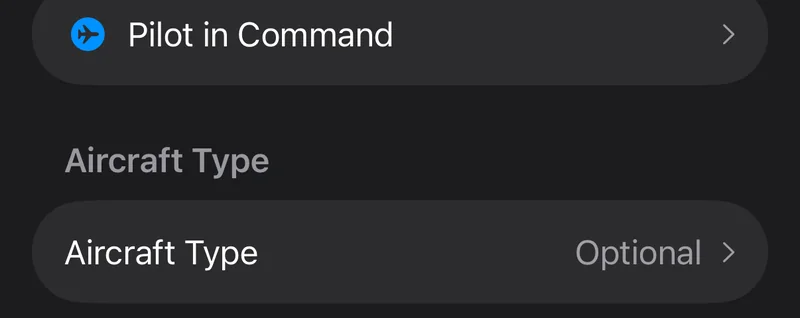
- Enter the Block Time, for example 1:30 or 20000:00. This is required. Air Time is optional.
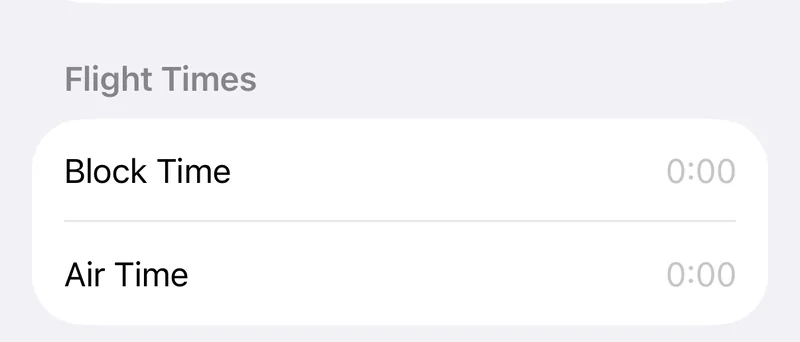
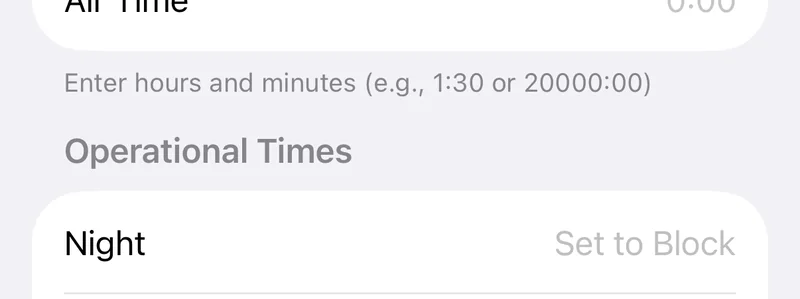
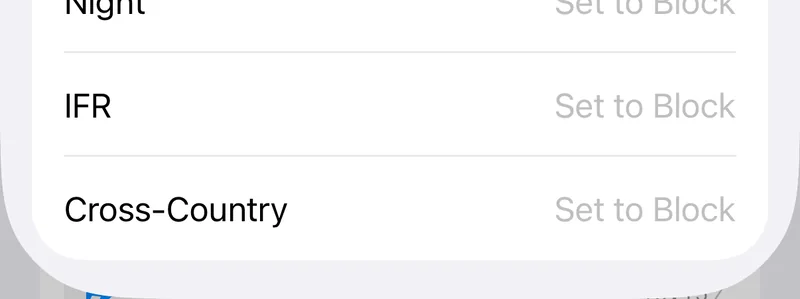
- Under Operational Times, enter Night, IFR and Cross-Country if you have them. Set to Block next to Cross-Country copies the block time.
- Under Takeoffs & Landings, enter Day Takeoffs, Night Takeoffs, Day Landings and Night Landings.
- Add Remarks if you want, and tap Save.
If the block time is not a valid time you get "Please enter a valid block time in HH:MM format".
Add simulator hours #
- On Previous Hours, tap + and choose Add FSTD Hours.
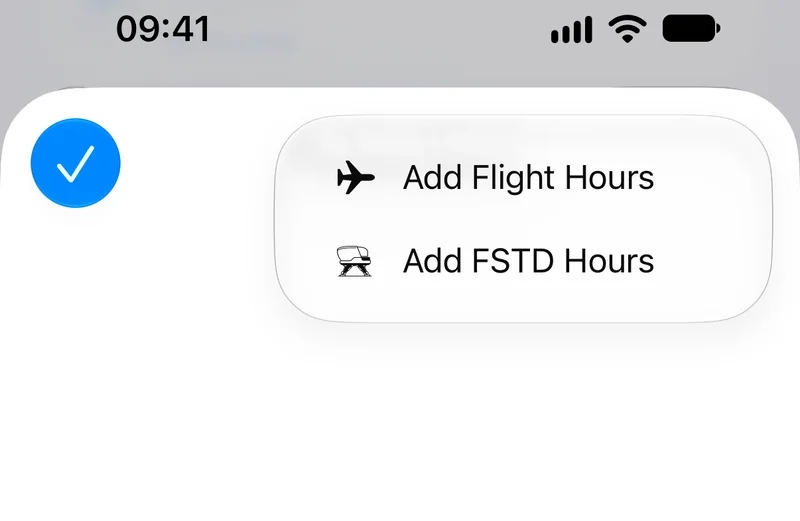
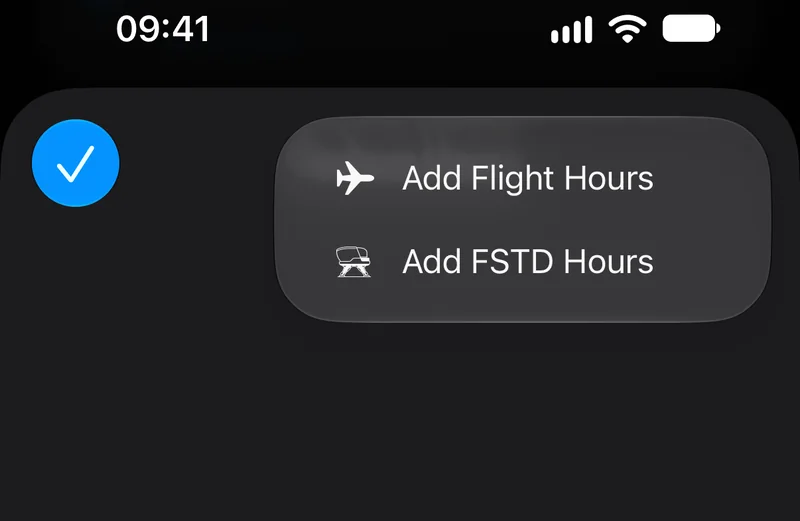
- Set the Date and Role.
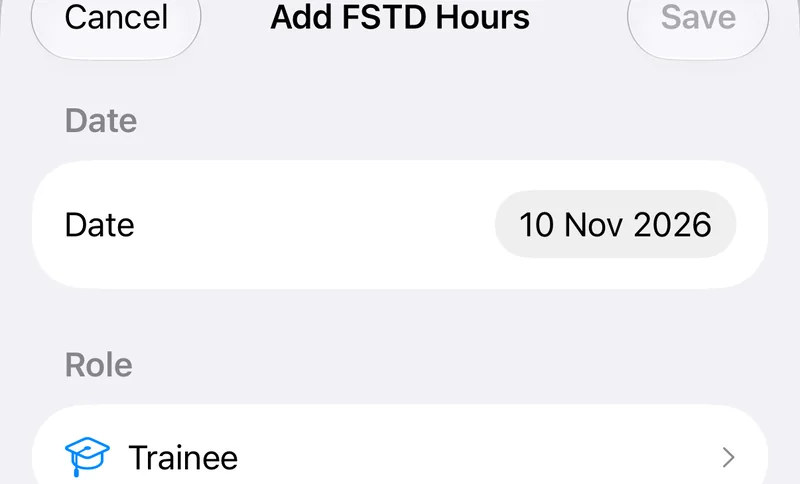
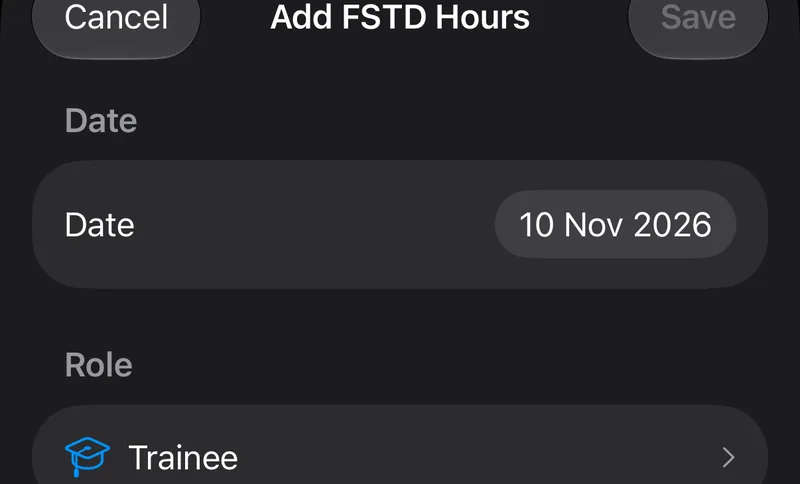
- Under FSTD Time, enter the Session Time, for example 4:00 or 500:00.
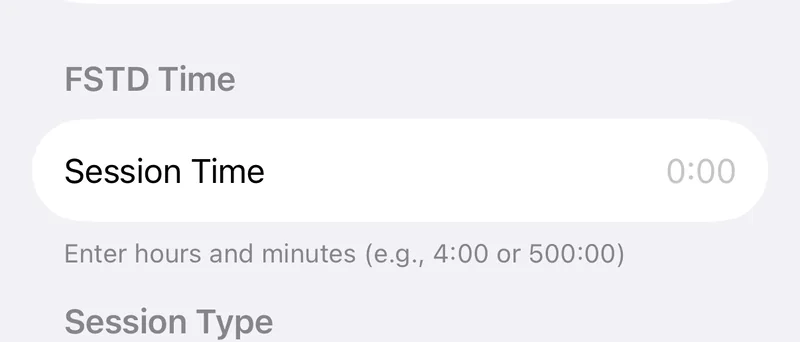
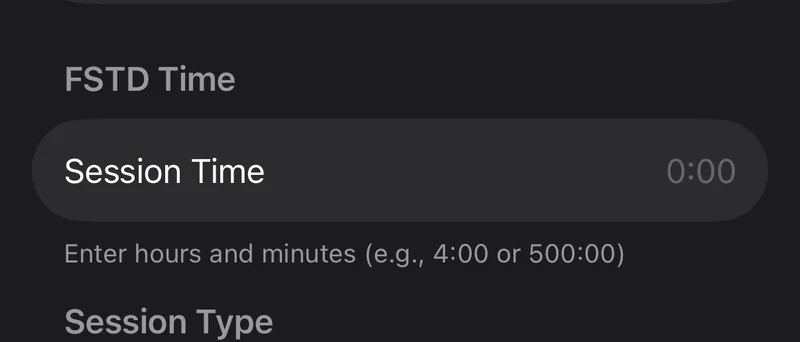
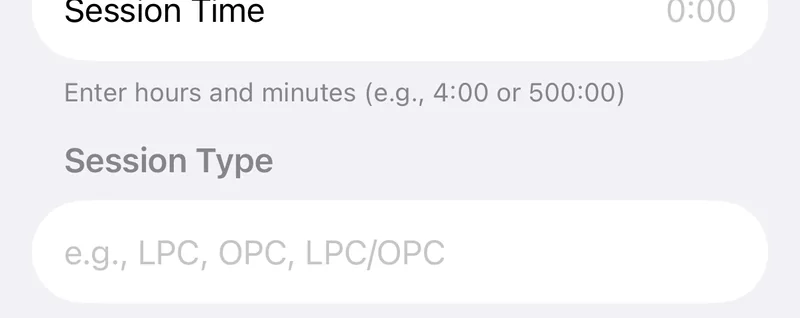
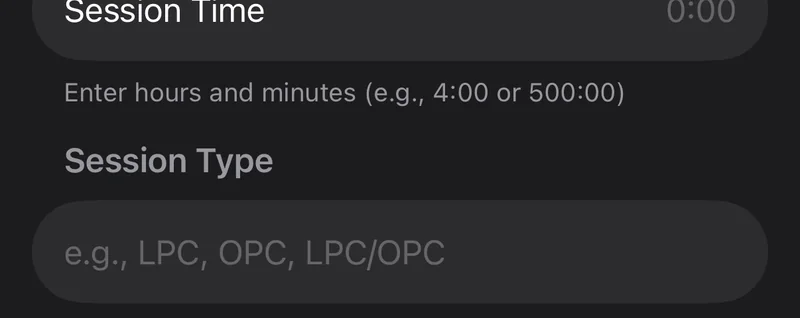
- Optionally enter a Session Type, such as LPC or OPC, and Remarks.
- Tap Save.
What these lines do #
A previous-hours line has no route, registration or crew, and it never shows entry issues. It counts as signed, so PICUS and SPIC hours land in the PIC column. See PICUS, SPIC and multi-pilot time. A line cannot be converted to a flight or session and cannot be signed.
To change many lines at once, use the Bulk Hours mode of the bulk editor. See Search, filters and bulk editing.
Still stuck? Write to support and a pilot answers.